Install and Upgrade Automation API Feature for Online Installations
In this guide, we'll run you through the installation steps of Automation API. Installing the Automation API with your on-premise QMetry installations will enable several automation API related features including faster automation result file imports into QMetry.
Before you Start
Choose a Deployment Option
Option 1: Shared server: install the Automation API on the same server that runs the QMetry Application.
Option 2 (recommended): Dedicated server: for heavy Automation API usage, install ActiveMQ, the Automation API, and Redis caching on a separate server.
If you are opting for Option 2, the following are hardware requirements for Active MQ and Automation API Server.
Hardware Requirements
Automation API Server Hardware Requirements
Small Teams < 50 Users | Medium Teams < 500 Users | Large Teams 500+ Users | ||||
Min | Recommended | Min | Recommended | Min | Recommended | |
Memory | 4 Gb | 8 Gb | 8 Gb | 16 Gb | 16 Gb | 32 Gb |
CPUs | 2 Core | 4 Core | 4 Core | 12 Core | 12 Core | 24 Core |
Pre-requisites for the Installation
QMetry Application is installed and running. Complete steps 1-7 of the QMetry and Reports Installation on Linux - 2 Tier (through entering the Base URL); Step 7 is mandatory.
Redis and ActiveMQ are configured with the QMetry Application. This guide installs both if you have not already.
Every server supports the commands: unzip, curl, and vim.
Internet access is enabled on every server for docker-based installation.
No Proxy blocks internet downloads.
Docker installation requires root user access.
Get the
QMetry_Linux_Installer.zipfile and Docker credentials from QMetry Support.
Required Ports
Required Ports
Installation | Ports that need to be enabled and should be available for use |
|---|---|
Redis Caching Server | 6379 |
Active MQ Server | 8181 & 61616 |
Automation API Server | 8081 |
Note
Run the three steps in order: Redis, then ActiveMQ, then the Automation API, so each dependency is available before the service that needs it.
During an upgrade, the installer detects the existing component and skips the configuration prompts, reusing stored values.
Install/Upgrade Redis Caching Server
Note
QMetry supports Redis 7.0.10 and later. The Docker image currently installs Redis 7.4.1.
Copy QMetry_Linux_Installer.zip to the server, then extract it and enter the directory:
unzip QMetry_Linux_Installer.zip
cd QMetry_Linux_Installer
Run the installer
sudo su
chmod +x install.sh
./install.sh
Enter Y on the following prompt
Options
Allowed Values
Default Value
Recommended Value
Do you want to make an online installation (Y/N)?
Y, y, N, n
Y
Y
The script runs docker.sh to verify Docker installation and prerequisites are met. Enter the docker credentials.
At the QMetry Installation Menu enter 4.
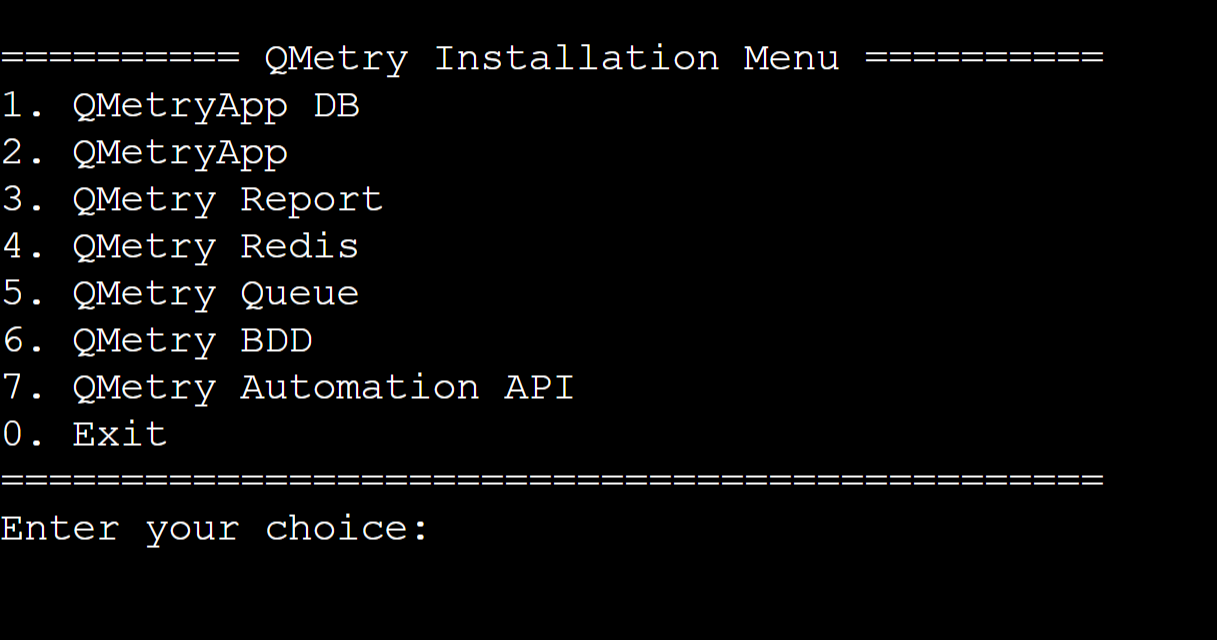
The installation may take a while. Once the installation is complete, execute the following command.
docker ps
Confirm the Redis container appears in the list.
Configure Redis in QMetry
Log in to the QMetry application:
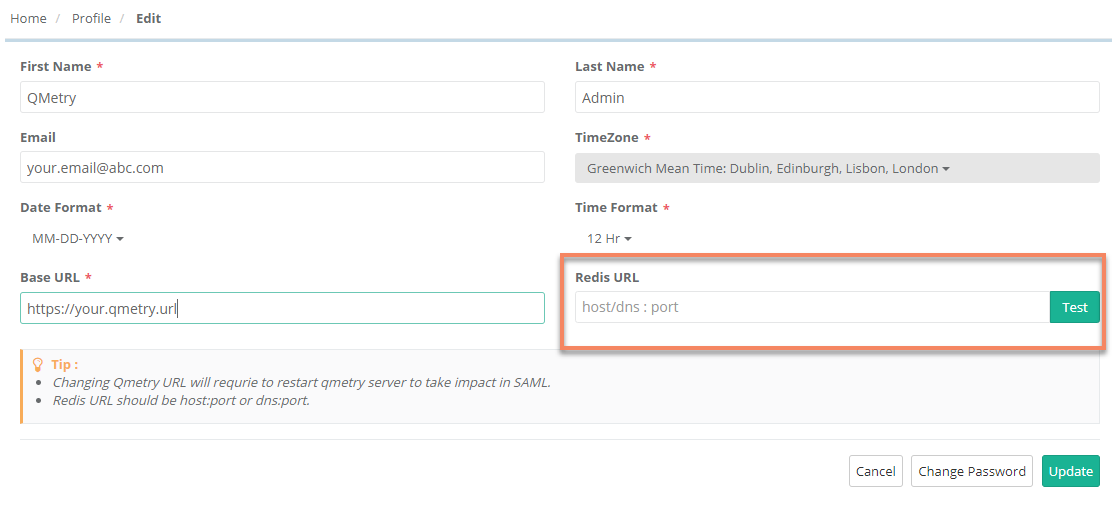
Go to "Admin" Profile and Edit the Profile.
Update QMetry Redis URL (host/dns:port).
For more on Redis, see https://redis.io/.
Note
Configure the Redis with QMetry Application as mentioned in 7. If you are facing any issues from the QMetry Application side after 7, then you may be required to restart the QMetry Application docker container after Step 7.
Install/Upgrade Active MQ
Copy the QMetry_Linux_Installer.zip to the server, then extract it and enter the directory.
unzip QMetry_Linux_Installer.zip
cd QMetry_Linux_Installer
Run the installer
sudo su
chmod +x install.sh
./install.sh
Enter your response to the following prompt:
Options
Allowed Values
Default Value
Recommended Value
Do you want to make an online installation (Y/N)?
Y, y, N, n
Y
Y
The script runs docker.sh to verify Docker installation and prerequisites are met. Enter container repository credentials shared as a part of the installation package.
At the main installation menu, type 5 to install Automation API.
Enter the ActiveMQ credentials (skipped during an upgrade):
Parameters
Example
ActiveMQ username
admin
ActiveMQ password
admin
Verify the container
docker ps
Configure ActiveMQ in QMetry
Login to QMetry and perform the following steps:
Go to "Admin" Profile and Edit the Profile.
Update MQ URL, MQ Username, and MQ Password.
The ActiveMQ URL should be in the format of protocol://<host>:port.
For example, "tcp://<activeMQ-Host>:61616"
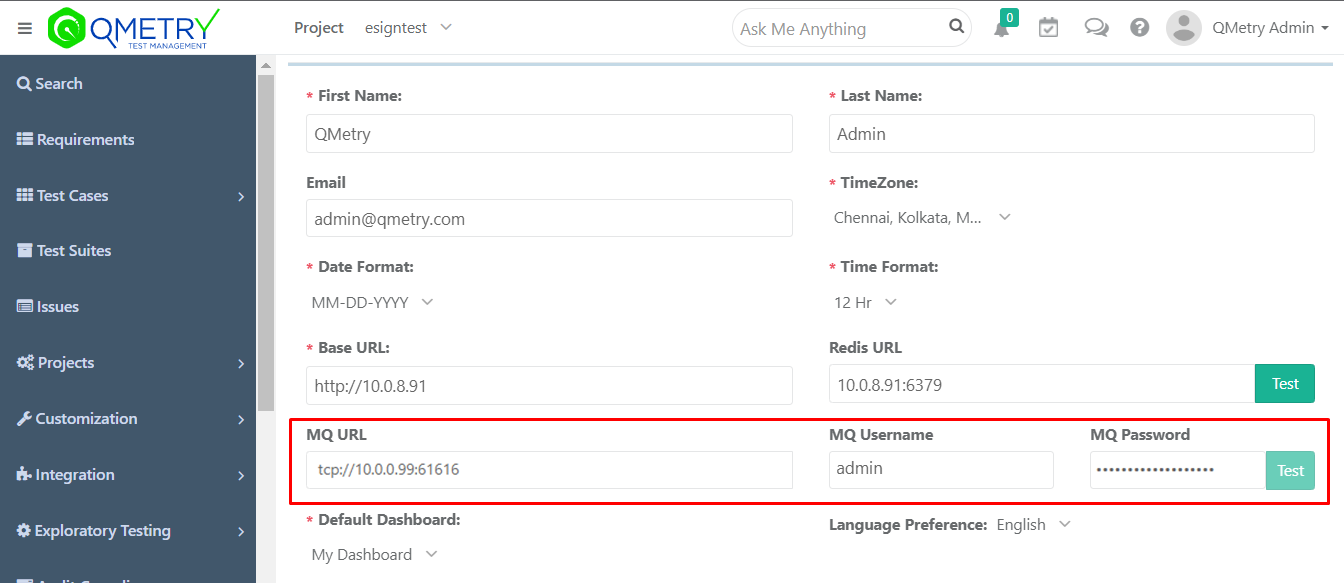
Restart the QMetry Application docker container.
Install Automation API Server
Copy QMetry_Linux_Installer.zip to the server and extract it:
unzip QMetry_Linux_Installer.zip
Run the installer
sudo su
chmod +x install.sh
./install.sh
Note
For upgrade, use upgrade.sh
Enter Y in the following prompt
Options
Allowed Values
Default Value
Recommended Value
Do you want to make an online installation (Y/N)?
Y, y, N, n
Y
Y
The script runs docker.sh to verify Docker installation and prerequisites are met. Enter container repository credentials shared as a part of the installation package.
At the main installation menu, type 7 to install QMetry Automation API.
Configure the below parameters
Options
Details
Default Value
Example
Enter QMetry (QTM) database host (localhost)
For AWS, use the private IP of the instance hosting the QTM database.
localhost
QTM Application's database host
Enter QMetry (QTM) database port (3306)
3306
3306
3306
Enter QMetry (QTM) database schema (qmetry)
qmetry
qmetry
qmetry
Enter QMetry (QTM) database user (root)
root
root
root
Enter QMetry (QTM) database password
-
qmetry
qmetry
Enter QMetry (QTM) database min connection (32)
32
32
32
Enter QMetry (QTM) database max connection (50)
50
50
50
Enter min threads (2)
2
2
2
Enter max threads (2)
2
2
2
Enter Redis host (localhost)
In case of AWS installation enter the private IP of the AWS instance where lis installed.
localhost
redis host
Enter Redis port (6379)
6379
6379
6379
Enter MQ URL (tcp://localhost:61616):
In case of AWS installation enter the private IP of the AWS instance where ActiveMQ is installed. EG: tcp://10.0.0.16:61616
tcp://localhost:61616
tcp://<activeMQ-Host>:61616
Enter MQ user (admin)
admin
admin
admin
Enter MQ password
Match your ActiveMQ password
-
-
Verify the docker
docker ps
Confirm the automation container appears in the list. Installation is complete once it is running.
Type 0 to exit the installer.
Get support
For any installation issue, raise a ticket on the Support Portal