QMetry Upgrade Guide for RHEL8, RHEL9, RHEL10 and Podman (from v8.16.0.1 and above)
Note
Update the Automation API to the latest version when you upgrade QMetry to the latest release.
To update the Automation API, refer to Install Automation API Feature (RHEL8, RHEL9, RHEL10 and Podman ).
This document is for customers who run QMetry containers on RHEL 8, RHEL 9 or RHEL 10 using Podman. It describes the steps to upgrade QMetry from an older version to the latest version.
The guide provides detailed instructions for backing up the QMetry database, upgrading the application, updating containers, verifying the containers, and installing or upgrading the Jira add-on.
Prerequisites
Before upgrading, ensure the following:
MySQL version for both QMetry Reports and QMetry Application is 8.4.8.
No operations or traffic are running on QMetry.
You have root access to the server that hosts the QMetry containers.
You have enough free disk space in the /opt directory for the database backup.
The server has an internet connection
Upgrading QMetry for RHEL 8, RHEL 9 and RHEL10 using Podman
To upgrade QMetry to the latest version, do the following:
Step 1: Important: Back up the Existing QMetry Database
Important
Back up the QMetry database before you upgrade. You need the backup to recover if the upgrade fails.
To backup your existing QMetry database, perform the following steps:
Run the following command to back up the qmetry database. Replace <password> with your MySQL root password and <date>; with the current date. The backup is saved in the /opt directory.
podman exec qmetryapp_db sh -c 'exec mysqldump -uroot -p<password> --triggers --routines --hex-blob --single-transaction --lock-tables --no-create-db qmetry' > /opt/qmetry_backup_<date>.sql
Example 19.podman exec qmetryapp_db sh -c 'exec mysqldump -uroot -pqmetry --triggers --routines --hex-blob --single-transaction --lock-tables --no-create-db qmetry' > /opt/qmetry_backup_2021-01-01.sql
Verify that the database is backed up and is available.
Step 2: Download the Upgrade Files
To download the required files, do the following:
Get the latest version of QMetry Upgrade Installer from the Support Portal.
Download the upgrade package
QMetry_RHEL_Installer.zipto the QMetry Application Server.
Step 3: Running Upgrade Script
To run the upgrade script, perform the following steps:
List the running containers with the following command:
podman ps
If podman is not running, use the following command to start it:
podman start qmetryapp_db
podman start qmetry_app_1
Note
Replace the container names with the names shown by the podman ps command if they are different.
Go to the directory where you downloaded the zip file, and copy the file into the application container:
podman cp QMetry_RHEL_Installer.zip qmetry_app_1:/opt
Note
The Tomcat installation path inside the container is /home/qmetry/QMetry.
Log in to the container:
podman exec -it qmetry_app_1 bash
Go to the /opt directory where you copied the file:
cd /opt
Extract the file to the /opt. Keep it separate from the current installation path: /home/qmetry/QMetry.
unzip QMetry_RHEL_Installer.zip
Go to the QMetry directory:
ls
cd QMetry_RHEL_Installer
Grant execution permissions to the upgrade script:
chmod +x upgrade.sh
Run the following command to execute the upgrade script:
./upgrade.sh
At the online upgrade prompt, enter Y.
Note
The process may take some time to complete. Wait for it to finish.
Table 23. Online InstallationOptions
Allowed Values
Default Value
Description
Do you want to make an online installation? (Y/N)
Y,y,N,n
Y
Enter Y to begin the online upgrade.
On the Upgrade Menu, type 2 to upgrade QMetry Application.
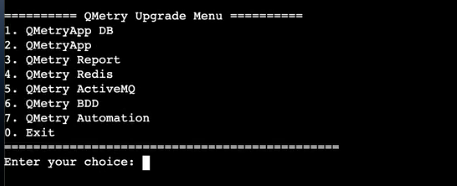
When the upgrade finishes, enter 0 to exit the installer.
Step 4: Verifying QMetry Container Status
List the running containers using the following command:
podman ps
Restart both containers using the following commands:
systemctl stop qmetryapp
systemctl stop qmetrydb
systemctl start qmetrydb
Wait for around 10 seconds, then execute the following command:
systemctl start qmetryapp
Installing or Upgrading QMetry Jira Add-on
Download the Jira add-on version that matches your QMetry version.
QMetry Version | Jira-addon version required |
|---|---|
8.29.x | v2.4.6_jira10(Jira Version 10x), v2.4.6_jira11 (Jira Version 11x) |
8.28.x | v2.4.5_jira10(Jira Version 10x), v2.4.5_jira11 (Jira Version 11x) |
8.27.x | v2.4.3_jira10(Jira Version 10x), 2.4.3 (Jira Version 11x) |
8.26.x | 2.4.2_jira10 (Jira Version 10x), 2.4.2 (Jira Version 11x) |
8.25.x | 2.4.1 (Jira Version 11x), 2.4.1_jira10 (Jira Version 10x) |
🔗 If the QMetry Jira Integration app is not installed, follow the Install QMetry's Jira Integration App.