Manage JIRA Projects for QMetry Integration
As a JIRA administrator, you control which JIRA projects can map to QMetry projects. You can make all JIRAprojects available for mapping, or make only the projects you enable available. Limiting the available projects keeps unrelated or restricted JIRA projects out of QMetry and reduces the project mapping list.
Prerequisites
Before you begin, make sure of the following:
You have JIRA System Administrator access.
At least one QMetry instance is connected.
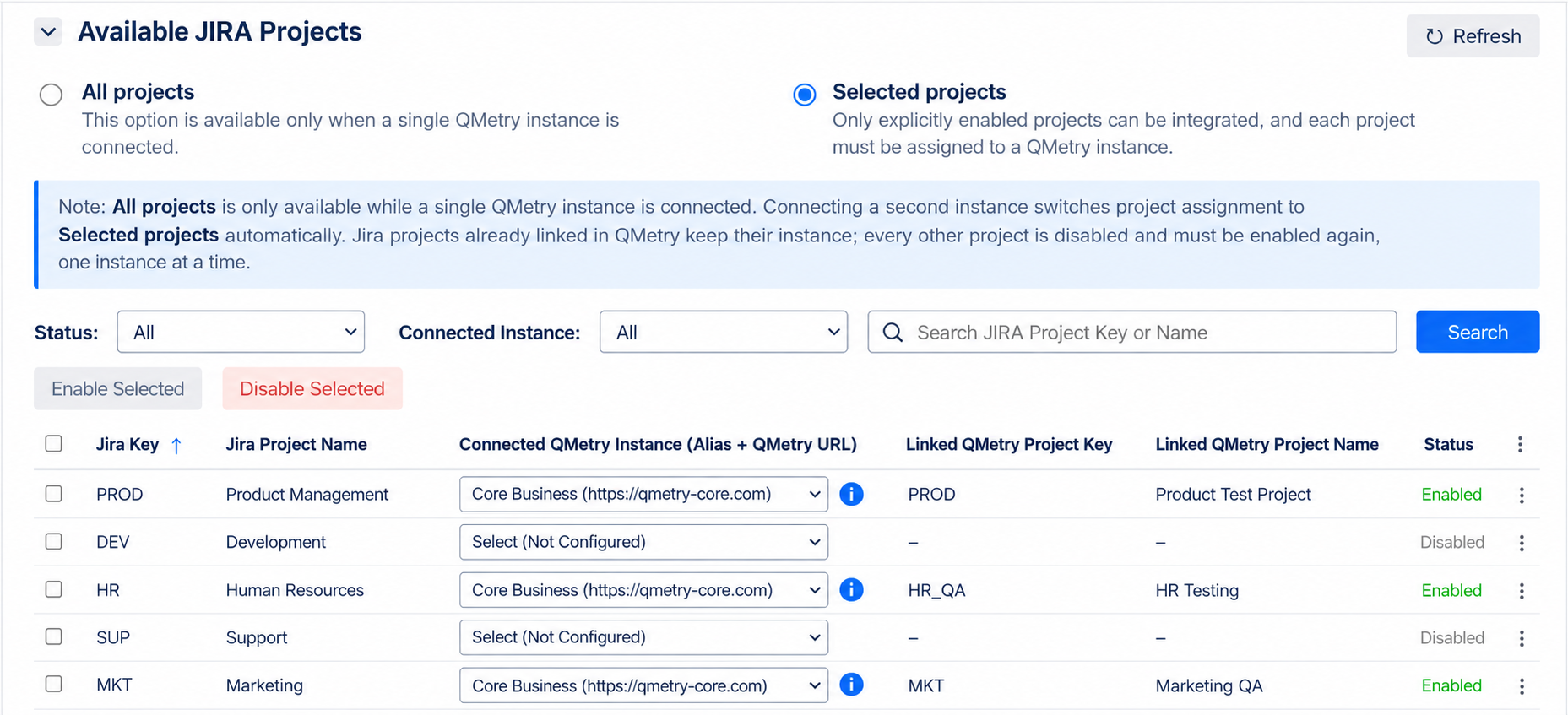
Available JIRA Projects
Option | Description |
|---|---|
All projects | All current and future JIRA projects can integrate with QMetry. Available only while one QMetry instance is connected. |
Selected projects | Only projects you enable can integrate. New JIRA projects are not enabled automatically. |
Note
After you install the app, the All projects option is selected by default, and all JIRA projects are enabled.
When you switch from All projects to Selected projects, the app disables every JIRA project except the projects that are already linked to a QMetry project. When you connect a second instance, the app makes this switch automatically.
Enable or Disable JIRA Projects
To choose the JIRA projects that you can link to QMetry, do the following:
In JIRA, go to Administration, and select the Manage apps tab.
On the navigation pane, under QMetry Test Management, select QMetry Configuration.
In the Available JIRA Projects section, select All projects or Selected projects. If you select All projects, no further steps are needed.
Select the checkbox for each project you want to enable or disable. If a JIRA project you created recently is not in the list, click Refresh.
Click Enable Selected or Disable Selected.
Note
When more than one QMetry instance is connected, you must assign each project to an instance. For more information, see Manage JIRA Project Access for Multiple QMetry Instances.
Filter, Search, and Bulk Actions
In the Status list, select a status to filter the projects.
In the Connected Instance list, select an instance to filter the projects.
In the Search box, enter a Jira project key or name, and click Search. You can search the project list by Jira project key or name only.
Select the required project and then click Enable Selected or Disable Selected.
Click Refresh to reload the list of Jira projects.
Rules for Linked Projects
You cannot disable a Jira project while it is linked to a QMetry project. First, remove each of its integrations in QMetry.
If you select Jira projects that are already linked to QMetry projects and click Disable Selected, the application disables only the projects that are not linked.