Steps to upgrade MySQL to v8.4.8 for RHEL8, RHEL9 & Podman
Pre-requisites
MySQL version of QMetry Reports and QMetry Application should be 8.0.33 or above.
Ensure that QMetry is not in use and there are no ongoing operations or traffic on QMetry.
Please ensure that docker is authenticated.
Upgrade Procedure for MySQL 8.4.8
Note
This process may take time depending on the amount of data in the database.
Backup your existing QMetry Database.
IMPORTANT: Back up your existing "qmetry" database before you continue. On the QMetry database server, take a backup of the database. You can replace the username, password, and location of the backup file (currently default /opt).
podman exec qmetryapp_db sh -c 'exec mysqldump -uroot -p<password>
--triggers --routines --hex-blob --single-transaction --lock-tables
--no-create-db qmetry' > /opt/qmetry_backup_<date>.sql
Example 16.podman exec qmetryapp_db sh -c 'exec mysqldump -uroot -pqmetry --triggers --routines --hex-blob --single-transaction --lock-tables --no-create-db qmetry' > /opt/qmetry_backup_2023-01-01.sql
Verify that your database has been backed up properly and is available for later use in case of any emergency.
Stop the QMetry application and report.
systemctl stop qmetryapp
systemctl stop qmetryreports
Extract and Run App Database Upgrade. Copy the
QMetry_RHEL_Installer.zipfile to the QMetry database server. Navigate to the directory where this file is kept and run the following command:unzip QMetry_RHEL_Installer.zip
Run the upgrade script.
cd QMetry_RHEL_Installer
sudo su
chmod +x upgrade.sh
./upgrade.sh
At the main installation menu, enter 1 to upgrade the QMetry database.
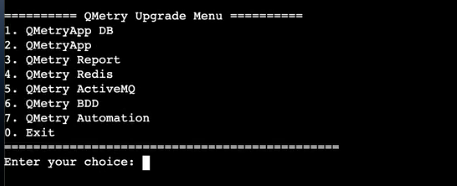
Configure the parameters:
Options
Default Value
Description
Do you have QMetry's application container running on this machine? (Y/N)
Y
Enter N for a 3-tier installation.
Do you have QMetry's database container running on this machine? (Y/N)
Y
Enter Y for a 3-tier installation.
Enter the name of QMetry's database container
qmetryapp_db
Enter the name of QMetry Database container.
Enter current Database Host
-
Enter Database Host Public IP/DNS of QMetry application.
Enter current Database Port
-
Enter Database Port of QMetry application.
Enter current Database User
-
Enter Database username of QMetry application.
Enter current Database Password
-
Enter Database password of QMetry application.
Enter current Database Schema
-
Enter Database schema name of QMetry application.
Restart the QMetry application and report containers:
systemctl start qmetryapp
systemctl start qmetryreports
Ensure data integrity by checking the QMetry app and report.
Verify Report Synchronization. Confirm that the report sync is working correctly.