QMetry Reports Upgrade to MySQL v8.4.8 Report DB Container (compatible with QMetryv8.14.x & above)
Prerequisites
Ensure that QMetry is not in use and there are no ongoing operations or traffic on QMetry.
You have sufficient disk space on the server to store backup data.
You complete the QMetry Reports Upgrade from v8.11.2 and above before performing this DB upgrade.
In Case of Offline Installation
If your server has no internet access, download and restore the QMetry Report Database image first. After the image is restored, continue with Step 1. If your server has internet access, go to Step 1.
Download the Container Image of QMetry Report DB.
Perform the following steps on a machine that has internet access, so that you can download the container images:
Run the following command, and then enter your container repository credentials when asked. If you do not have the credentials, contact QMetry Support:
docker login
After you enter the credentials, a success message appears, as shown in the following screenshot:

Run the following commands to download and save the QMetry Report Database container image:
docker pull qmetry/qmetry:reportdb848
docker images
docker save -o reportdb8.tar qmetry/qmetry:reportdb848
ls
Transfer the reportdb8.tar file to the server where you will upgrade the Report DB.
Restore the Container Image of QMetry Report DB.
Restore the container image of QMetry Report DB on the machine where you will perform the upgrade. To restore the image, do the following:
Steps to restore the container image of the QMetry Report Database:
If you are using the root user, run the following command. If you are using another user, skip this step:
sudo su
Go to the directory that contains the reportdb8.tar file, and then run the following command:
docker load -i reportdb8.tar
Run the following command to verify that the images are restored:
docker images
Steps to Upgrade to MySQLv 8.4.8 Report DB Container
Note
The new Report Database will be accessible on port 3306 by default. As the data is already in the synced state, mention “N” when asked for the force sync.
Copy the
QMetry_Linux_Installer.zipfile to the server. Go to the directory where this file is kept, and run the following command:unzip QMetry_Linux_Installer.zip
The upgrade process does the following:
Creates a backup of the data from the MySQL 8.0.33 container in the directory where the script is run.
Sets up a new database container that runs MySQL v8.4.8.
Restores the backed-up data into the new MySQL v8.4.8 container.
Ensure that this directory has enough disk space for the Reports DB data.
Run the following commands.
cd QMetry_Linux_Installer
sudo su
chmod +x upgrade.sh
sh upgrade.sh
At the main installation menu, type 1 to upgrade the QMetry database.
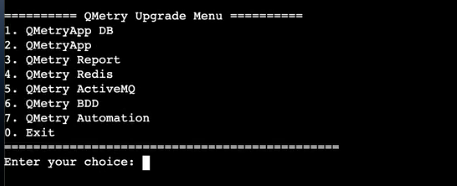
Configure the following parameters.
Options
Default Value
Description
Do you have QMetry's report container running on this machine? (Y/N):
Y
Mention “Y” if QMetry's report container running on the same machine.
Enter name of QMetry report's container (qmetry-reports):
qmetry-reports
Enter the QMetry Report application container name.
Do you have Report's database container running on this machine? (Y/N):
Y
Mention “Y” if Report's database container running on the same machine.
Enter name of Report's database container (qmetry-reports-db):
qmetry-reports-db
Enter the QMetry Report Database container name.
After the import is complete, update the Configurations. Refer to QMetry and Reports Installation on Linux - 2 Tier for configurations.
Whichever fields have changed (i.e. QMetry App/Report Database Host or Database Ports), enter those updated values in the input fields.
To continue with the old value for a particular field, press the ENTER/RETURN button on the keyboard to skip the input.
Steps to upgrade Reports to the latest version
Follow the document QMetry Reports Upgrade from v8.11.2 and above to upgrade to the latest version.