Operations on Column Headers
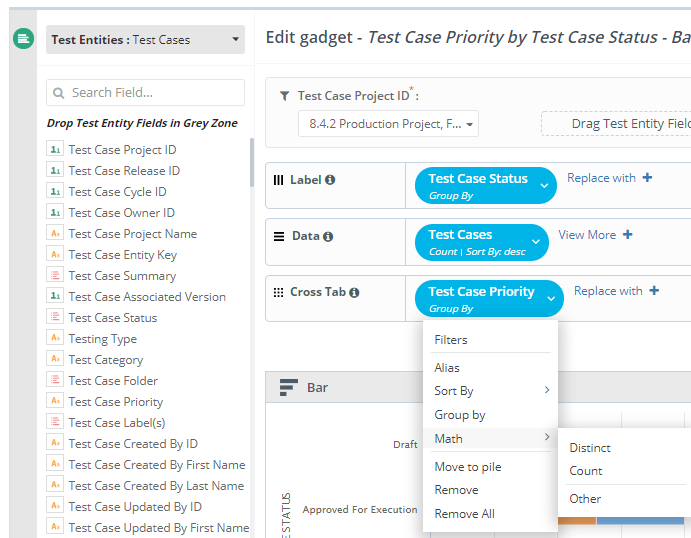
Use operations on column headers to filter, rename, sort, group, and aggregate the data in each column of a Visual Report. To access the operations, hover over a column in the Column Header area.
 |
Apply Filters
Use filters to limit the records that a column returns. You can apply multiple filters with different conditions to a column.
Apply All Filters:
The Apply All Filters setting controls whether the system uses the filters that you create for a column.
When On the system applies all filters that you create for the column.
When Off the system does not apply the filters to the column.
Add a Filter Condition
To add a filter condition to a column, do the following:
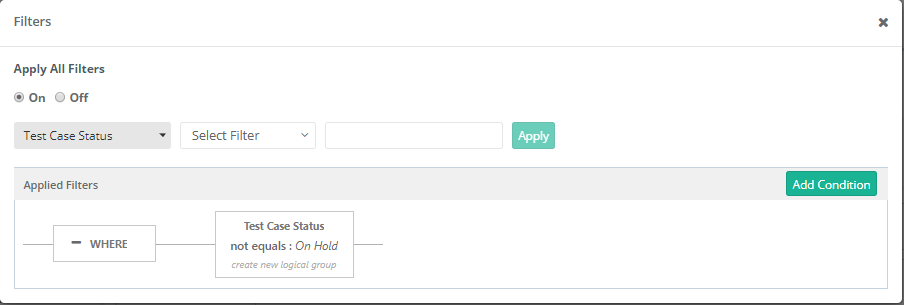 |
Select a column and an operator, and then specify a value for the operator.
Click Apply.
The condition appears in the panel below.
Apply AND Conditions
To apply AND condition, do the following:
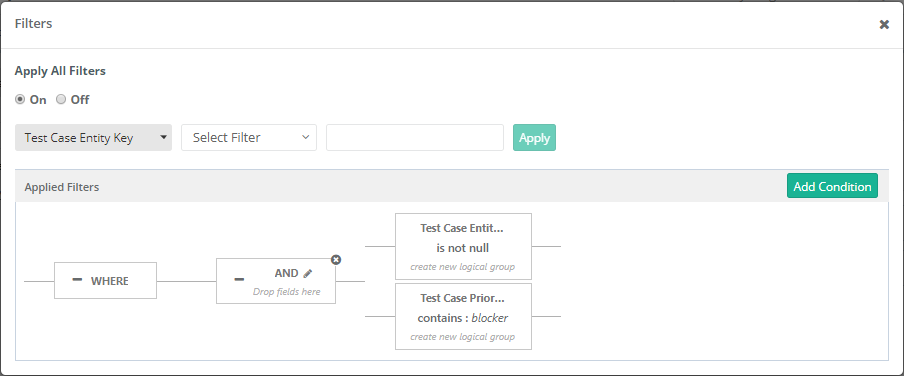 |
Add a second condition to the same filter. Repeat the steps in the previous procedure.
Apply OR Conditions
To apply OR condition, do the following:
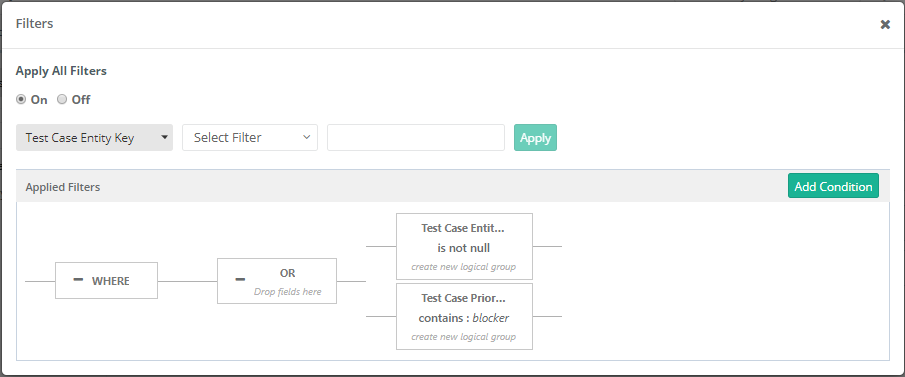 |
Click the Pencil icon of AND condition and it gets converted into OR condition.
Operators
The following table describes the operators that you can use in filter conditions and the values that each operator accepts.
Operator | Description | Possible Values |
|---|---|---|
Is Blank | String type field - Finds records with blank value (without any value) in the field. | No value required |
Is Not Blank | String type field - Finds records that have at least some value in the field. | No value required |
Is Null | List type field - Finds records that have no value for the list field. | No value required |
Is Not Null | List type field - Finds records that have at least one value for the list field. | No value required |
Equals | Finds records that have field values that are equal to the number/text you enter. | Number/Text |
Not Equals | Finds records that have field values that are not equal to the number or text you enter. | Number/Text |
Between | Finds records that have field values within a date or numerical range. | Date and Time Range Number Range—Select a minimum and maximum number that a value can be. |
Greater or Equals | Finds records that have field values that are more than or equal to the number you enter. | Number, Date |
Greater Than | Finds records that have field values that are more than the number you enter. | Number, Date |
Less Than | Finds records that have field values that are less than the number you enter. | Number, Date |
Less or Equals | Finds records that have field values that are less than or equal to the number you enter. | Number, Date |
Starts With | Finds records that have field values that start with the text you enter. | Text |
Not Starts With | Finds records that do not have field values that start with the text you enter. | Text |
IN | Finds records with field values that match at least one of the values from a list. It is used to validate the field against multiple values. | Text, Date |
Not IN | Finds records that do not have at least one value from a list. It is used to validate the field against multiple values. | Text, Date |
Contains | Finds records with the field that contain the partial value you enter. | Text |
Not Contains | Finds records with the field that do not have the partial value you enter. | Text |
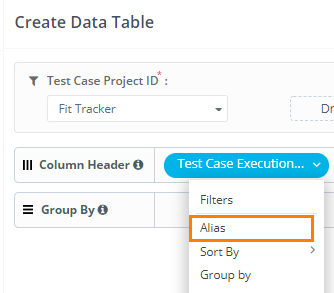
Alias
Use Alias to change the name of a column.
 |
Sort By
Use Sort By to sort the column data in ascending or descending order.
Group By
Use Group By to group the report data by a column.
Math
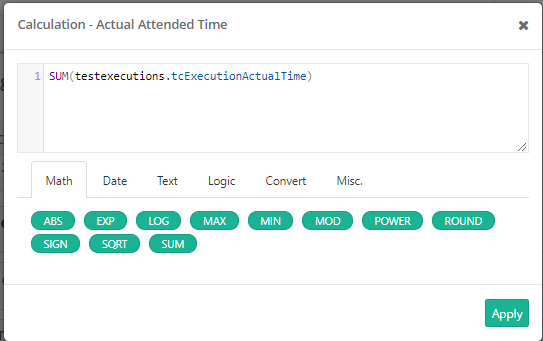
Use Math to count records or to apply other mathematical operators to a column. The following table describes the available options.
 |
Option | Description |
|---|---|
Distinct | Returns only records with different values and removes duplicate records from the results. |
Count | Returns the total number of records for the column, including records with duplicate values. |
Other | Opens a query editor for the column with its relevant statement. Apply operators and functions to the statement. |
In the query editor, the following function categories are available.
Category | Description |
|---|---|
Math | Performs mathematical operations. For example, use Sum to calculate a total, such as the Actual Execution Time of test cases. |
Date | Works with date values. For example, Created Date contains both a date and a time stamp. To convert it to a date, use the DATE function. |
Text | Works with text columns. For example, to display Test Case Priority in uppercase, apply a text function to the column. |
Logic | Applies conditions to a column. For example, to count the test cases that have no assignee, apply a logic function to the column. |
The query editor also provides Convert and Miscellaneous functions.
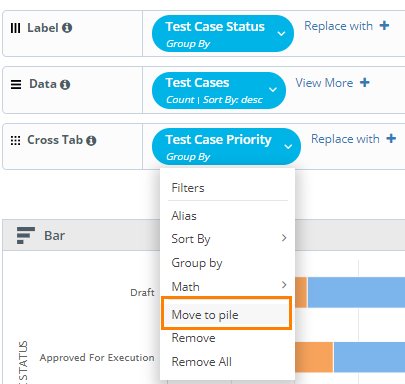
Move to Pile
Use Move to Pile to hide a column from the report. The system performs the operation on the column but does not display the column in the report.
Remove
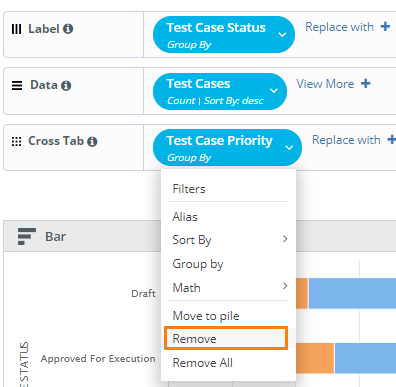
Use Remove to remove a column from an attribute, for example, the Cross Tab attribute. The system does not consider the removed column when it generates the report.
For example, when you select Remove on the Test Case Priority column, the system no longer includes that column in the report.
Remove All
Use Remove All to remove all columns from an attribute, for example, the Data attribute of a chart. The removed columns are also unavailable in the View More list.
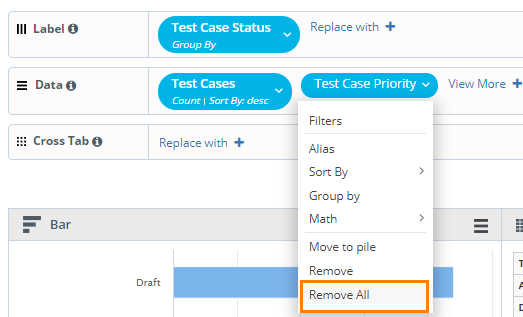
For example, when you select Remove All on the Test Case Priority column, the system removes all columns from that attribute.