QMetry Report Upgrade Guide (Docker)
This topic describes how to upgrade the qmetry-report-sync and qmetry-report-cdc containers by using the upgrade_report_sync.sh script.
The script replaces the application files inside both containers after backing up the existing ones. It takes no arguments.
Prerequisite
Before you begin, ensure the following:
Docker is installed on the host machine.
Containers
qmetry-report-syncandqmetry-report-cdcexist and are running.You have received
QMetryReportUpgrade.zipfrom QMetry. It contains the upgrade script and these files:File
Used for
QMetryDataSynch.jarNew
/app/app.jarinqmetry-report-syncapps.pyNew
/opt/apps.pyinqmetry-report-syncQMetryCDC.jarNew
/app/app.jarinqmetry-report-cdc
Upgrading QMetry Reports
To upgrade the qmetry-report-sync and qmetry-report-cdc containers, complete the following procedures in order:
Step 1: Unzip the upgrade package
QMetry provides QMetryReportUpgrade.zip, which contains QMetryCDC.jar, QMetryDataSynch.jar, apps.py and upgrade_report_sync.sh. Copy the zip to the host machine where the containers run, unzip it, and open a terminal in the extracted directory. All four files must stay in the same directory.
unzip QMetryReportUpgrade.zip -d QMetryReportUpgrade
cd QMetryReportUpgrade
ls

Step 2: Confirm the containers are running
Both containers must be listed with status "Up".
docker ps --format "table {{.Names}} {{.Status}}"

Step 3: Make the script executable
Run the following command:
chmod +x upgrade_report_sync.sh
Step 4: Run the script
Run the script. It first checks that all files exist and both containers are running; if any check fails it prints the errors, says "No action performed." and exits without changes.
./upgrade_report_sync.sh
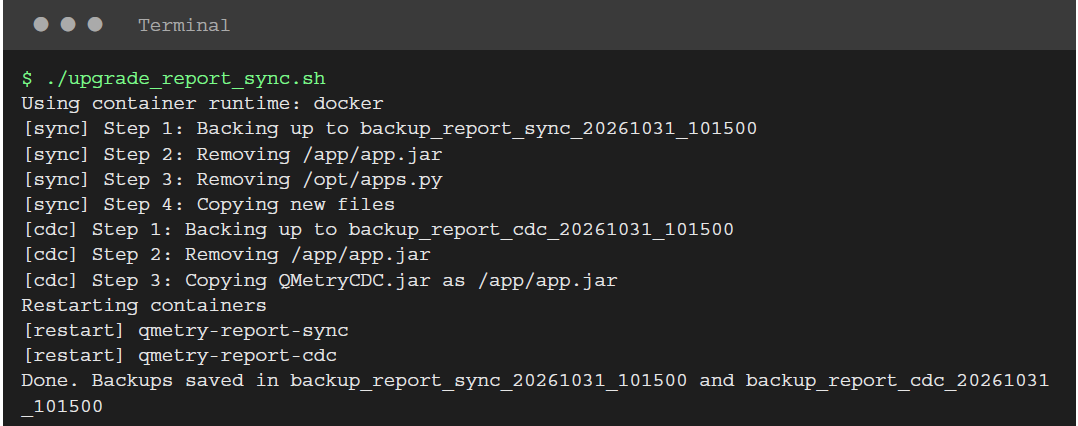
If pre-checks fail, fix the reported problem (missing file, container not existing or not running) and re-run.

Step 5: Verify the Upgrade
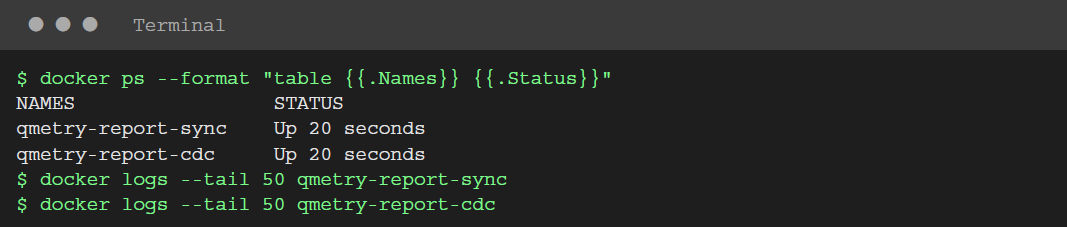
Confirm both containers are back up after the restart, and check their logs for errors.
$ docker ps --format "table {{.Names}} {{.Status}}"
Step 6: Keep the backups
Two backup folders are created in the current directory (backup_report_sync_<timestamp> and backup_report_cdc_<timestamp>). Retain them until you have confirmed the upgrade works.
Rollback (restore from backup)
If something goes wrong, copy the backed-up files back and restart. Replace <date> with your backup timestamp.
docker cp backup_report_sync_<date>/app.jar qmetry-report-sync:/app/app.jar
docker cp backup_report_sync_<date>/apps.py qmetry-report-sync:/opt/apps.py
docker cp backup_report_cdc_<date>/app.jar qmetry-report-cdc:/app/app.jar
docker restart qmetry-report-sync qmetry-report-cdc
Illustrative terminal output; timestamps and details will differ on your system.
Note
The script stops at the first failing command; a failed backup stops it before anything is deleted.
If the CDC upgrade fails, the sync container has already been upgraded. There is no automatic rollback; use the restore steps above.
No container is restarted if any earlier step fails.
Exit status is 0 on success and 1 on pre-check failure.