QMetry Online Upgrade Guide for Linux (from below v8.16.0.1 to the latest version)
Note
If your current version is below v8.16.0.1, update the Single Sign-On (SSO) login URL.
To update the SSO, refer to Changes in SSO URL in QMetry On-premise for v8.29.x.
Update the Automation API to the latest version when upgrading QMetry to the latest release.
To update the Automation API, refer to Install/Upgrade Automation API Feature for Online Installations.
This document is intended for QMetry customers running QMetry on Linux. It outlines the steps to upgrade QMetry from an older version (below v8.16.0.1) to the latest available release in online mode.
System Requirements and Pre-requisites
Before upgrading, ensure the following:
MySQL version for both QMetry Reports and QMetry Application is 8.4.8.
Internet connection is enabled on the server.
Upgrading QMetry for Linux
To upgrade QMetry to the latest release, perform the following steps:
Step 1: Important: Backing up the Existing QMetry Database
To backup your existing QMetry database, perform the following steps:
Create a backup of the "qmetry" database. By default, the backup is saved in the /opt directory.
Run the following command to update the username, password, and backup file location.
docker exec qmetryapp_db sh -c 'exec mysqldump -uroot -p<password> --triggers --routines --hex-blob --single-transaction --lock-tables --no-create-db qmetry' > /opt/qmetry_backup_<date>.sql
Example 21.docker exec qmetryapp_db sh -c 'exec mysqldump -uroot -pqmetry --triggers --routines --hex-blob --single-transaction --lock-tables --no-create-db qmetry' > /opt/qmetry_backup_2023-01-01.sql
Verify that the database is backed up and is available.
Step 2: Downloading the Upgrade Files
Download the required files by following these steps:
Get the latest version of QMetry Upgrade Installer from the Support Portal.
Download
QMetry_Linux_Installer.zipto the QMetry Application Server on the host machine.
Step 3: Running Upgrade Script
To run the upgrade script, perform the following steps:
List the running containers with the following command:
docker ps
If Docker is not running, use the following command to start it:
docker start qmetryapp_db
docker start qmetry_app_1
Note
Replace the container names with the correct application names as specified in the previous command
Go to the directory where the
QMetry_Linux_Installer.zipfile is downloaded and unzip the file on the host machine:unzip QMetry_Linux_Installer.zip
Go to the QMetry directory
cd QMetry_Linux_Installer.zip
Grant execution permissions to the upgrade script
chmod +x upgrade.sh
chmod +x qmetry.sh
Execute the upgrade script
./upgrade.sh
Confirm to upgrade
Note
The process may take some time to complete. Kindly be patient and allow it to finish properly.
Table 26. UpgradeOptions
Allowed Values
Default Value
Desciption
Do you want to make an online installation (Y/N)?
Y,y,N,n
Y
Enter “Y” to begin the online upgrade. Else, enter “N”.
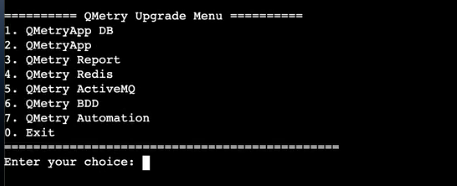
QMetry Upgrade Menu
Tpe 2 to upgrade QMetry Application.
Step 4: Restarting QMetry and MySQL Docker Container
List the running containers
docker ps
Restart both Docker containers
docker stop qmetry_app_1 qmetryapp_db
docker start qmetryapp_db
docker start qmetry_app_1
Step 5: Installing or Upgrading QMetry Jira Add-on
Download the correct Jira add-on version that matches your QMetry version. Refer to the table below to find the compatible Jira add-on version based on your QMetry version.
QMetry Version | Jira-addon version required |
|---|---|
8.29.x | 2.4.6_jira10 (Jira Version 10x), 2.4.6 (Jira Version 11x) |
8.28.x | 2.4.5_jira10 (Jira Version 10x), 2.4.5 (Jira Version 11x) |
8.27.x | 2.4.3_jira10 (Jira Version 10x), 2.4.3 (Jira Version 11x) |
8.26.x | 2.4.2_jira10 (Jira Version 10x), 2.4.2 (Jira Version 11x) |
8.25.x | 2.4.1 (Jira Version 11x), 2.4.1_jira10 (Jira Version 10x) |
If the QMetry Jira Integration app is not installed, follow the Steps to install and configure the QMetry Jira Integration app.
If you are upgrading from QMetry version 8.8.0 or lower, then Jira force sync is required. Refer to Jira Force Sync for more information.
Reconfiguring SSL After Upgrading QMetry to the Latest Version
If you have configured SSL (https) in Tomcat inside the container, you must reconfigure it in the new Docker container. For more information on configuring SSL, refer to the SSL Certificate Configuration for Tomcat in Docker document.
Get Support
If you encounter any issues during the upgrade, contact QMetry Support.