Connecting Additional QMetry Instances
Connect JIRA Data Center to more than one QMetry instance, and manage those connections from one page. For example, a general business unit and a regulated healthcare unit can each use their own QMetry instance with the same JIRA instance. QMetry keeps each unit's test data separate.
Prerequisites
Before you connect an additional instance, make sure you meet the following requirements:
You have JIRA system administrator permissions.
You have QMetry Admin credentials, or an Open API key, for the QMetry instance that you want to connect.
You have already connected at least one QMetry instance. For more information, see Configuring JIRA Integration for Data Center.
Connect Another QMetry Instance
Note
You can configure each QMetry URL only once.
You can connect another QMetry instance at any time. To connect an additional instance, do the following:
In JIRA, go to the administration settings, and select Manage Apps.
Select QMetry Configuration.
Select Connect New QMetry Instance.
Connect the instance by using either credentials or an Open API key, as described in Configuring JIRA Integration for Data Center.
What Changes When You Connect a Second Instance
The app switches to Multiple Instance Mode and applies the Selected projects option. The following changes take effect:
JIRA projects that are already linked to a QMetry project on the first instance stay enabled on that instance.
All other enabled JIRA projects that are not yet linked to a QMetry project are disabled.
Every JIRA project that you enable from now on must be assigned to a specific QMetry instance.
View Connected QMetry Instances
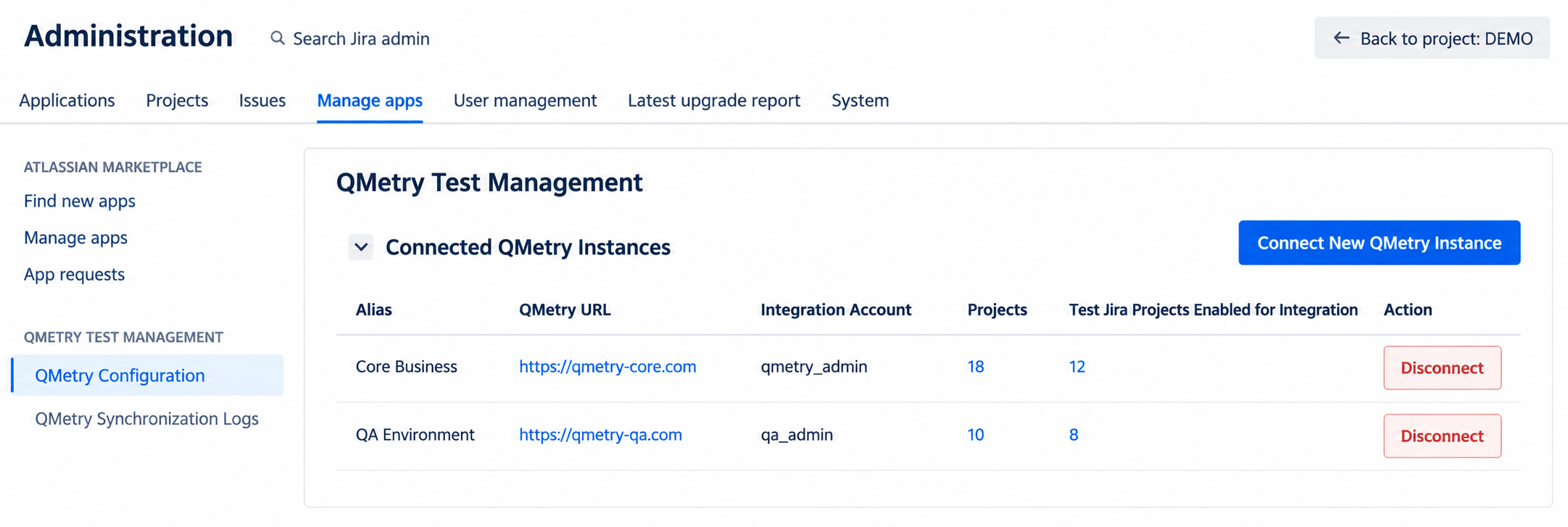 |
The Connected QMetry Instances table lists every QMetry instance that is currently connected to this JIRA instance.
Column | Description |
|---|---|
Alias | The short name that you gave the instance when you connected it. |
QMetry URL | The URL of the QMetry instance. |
Integration Account | The QMetry user account that the instance authenticated with. |
Projects | The total number of JIRA projects enabled for integration with this instance. |
Action | Disconnect. This removes the connection to this instance. |
If you remove the connection to an instance, that instance no longer appears in this list. JIRA projects that are still linked to it continue to show it in the Connected QMetry Instance column of the project list.
Note
If you upgraded from an earlier version, your existing instance appears with the alias Default Integration.
Disconnect a QMetry Instance
To disconnect a QMetry instance, do the following:
In the Connected QMetry Instances section, in the row for the instance, click Disconnect.
Review the message, and click Confirm.
Disconnecting an instance does not delete test data or unlink JIRA projects. After you disconnect an instance, the following changes take effect:
JIRA projects linked to the instance stay linked in QMetry. To unlink a project, remove its integration in QMetry before you disconnect the instance.
The disconnected instance disappears from the Connected QMetry Instances section. The connected QMetry Instance column in the Available JIRA Projects section still shows it for linked projects, so you can see which projects need cleanup in QMetry.
On the JIRA issue page, the QMetry section shows data only from the QMetry instance that the issue's project is linked to. After you disconnect that instance, the section can no longer load the QMetry key, QMetry project, test cases, test case steps, or executions for issues in its linked projects.
The app stays in Multiple Instance Mode, even if only one instance remains connected. Only the Selected projects option is available.
If you reconnect the same instance later, its linked projects show as connected again. You do not need to link them again.
All projects will only be available if the users removes all the linked JIRA Project from within QMetry and then disconnects the instance. If user simply disconnects then links will stay and All projects option won't be available.
If an instance disconnects because its authentication token expired, the project list does not display the details of its linked QMetry projects.
Return to Single Instance Mode
The All projects option is available only in Single Instance Mode. The app returns to Single Instance Mode when only one QMetry instance has JIRA projects linked to it. Disconnecting an instance is not enough, because its JIRA projects stay linked.
For each instance that you want to remove, do the following:
In QMetry, remove the integration for every JIRA project that is linked to the instance.
In JIRA, disconnect the instance, as described in Disconnect a QMetry Instance.
Note
Remove the integrations in QMetry before you disconnect the instance in JIRA. If you disconnect the instance first, JIRA cannot detect that the projects were unlinked, and the app stays in Multiple Instance Mode.
The remaining instance keeps the Selected projects option, and its existing links do not change. To integrate all JIRA projects, switch to All projects. For more information, see Configuring JIRA Integration for Data Center.