Configuring JIRA Integration for Data Center
Connect QMetry Integration for JIRA on JIRA Data Center to one or more QMetry On Premise instances, and control which JIRA projects can integrate with each instance. One installation of the app can connect to multiple QMetry instances. This lets business units that share one JIRA Data Center instance keep their test data separate.
Each JIRA project connects to only one QMetry instance at a time.
Note
Connecting to multiple QMetry instances is supported only for JIRA Data Center and JIRA Server.
If you are connecting the first instance, the app is in Single Instance Mode, and All projects is selected. If another instances are already connected, the app switches to Multiple Instance Mode.
Prerequisites
Before you configure the integration, make sure you meet the following requirements:
You have JIRA System Administrator permissions.
For each QMetry instance, you have QMetry admin credentials or an Open API key.
Each QMetry instance runs a version that is compatible with the JIRA app. SmartBear recommends the latest supported QMetry version.
Use system administrator credentials.
For cloud instance, use the account of the user who registered the QMetry instance.
For data center customers, the Admin user is the administrator.
Connect a QMetry Instance Using Credentials
Connect JIRA Data Center to a QMetry instance by using QMetry admin credentials.
Note
SSO login cannot be used for the integration. SmartBear recommends that you use the Admin user of your QMetry Server instance.
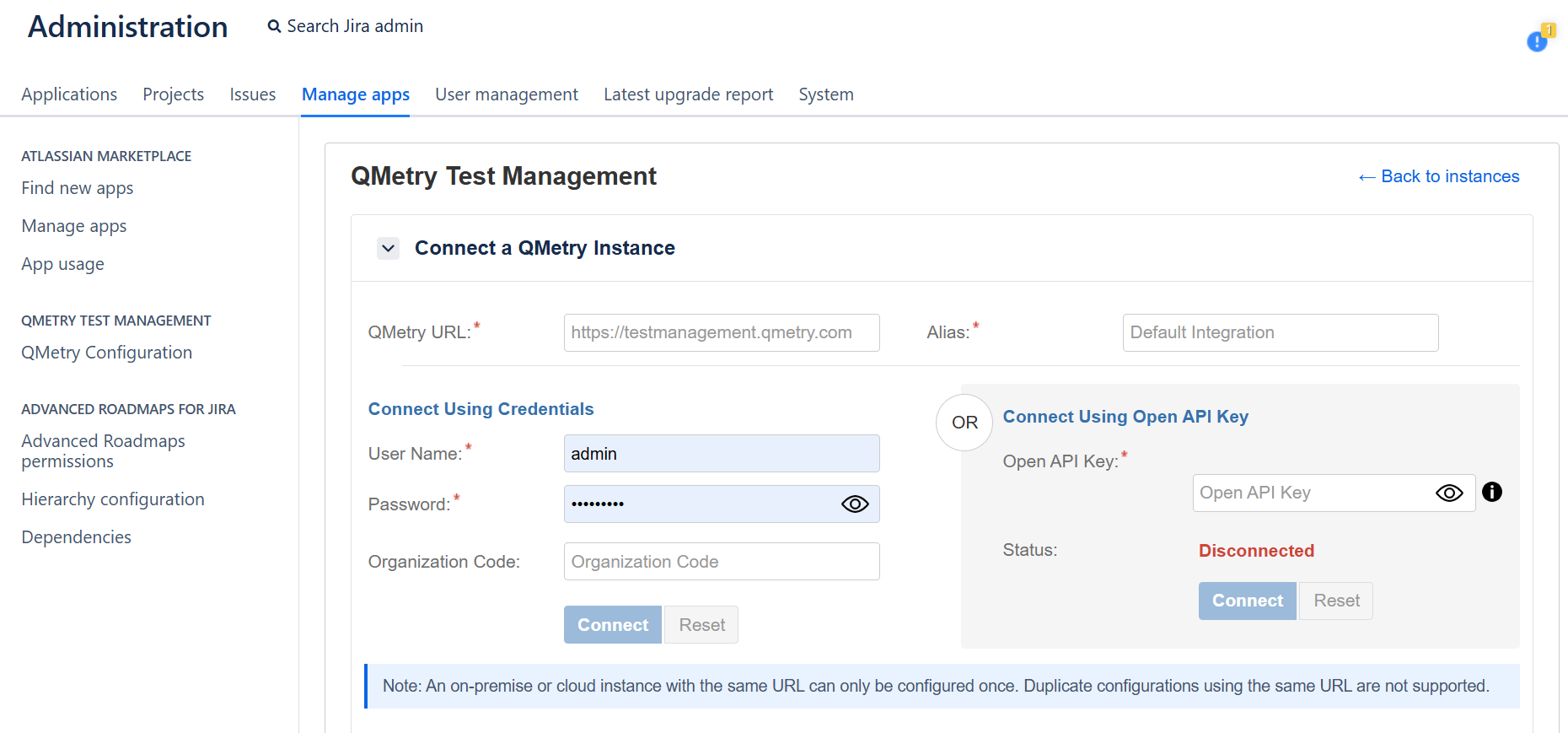
In JIRA, go to Administration and select Manage Apps.
On the navigation pane, under QMetry Test Management, select QMetry Configuration.
In the Connect a QMetry Instance section, enter your QMetry URL.
In the Alias box, enter a unique name for the QMetry instance, such as Core Business. The alias must be unique and cannot exceed 50 characters.
Under Connect Using Credentials, enter the QMetry admin User Name, Password and Organization Code.
Select Connect.
Optional: If two-step verification is enabled for the user, enter the verification code, and click Submit.
Connect Using Open API Key
Connect JIRA Data Center to a QMetry instance by using an Open API key.
Note
The Open API Key is available only to users who have opted for the Integration app.
In QMetry, go to Integration, and select Open API and copy the Open API Key.
In JIRA, go to Administration, and select the Manage apps tab.
On the navigation pane, under QMetry Test Management, select QMetry Configuration.
In the Connect a QMetry Instance section, enter the QMetry URL.
In the Alias box, enter a unique name for the QMetry instance, such as Core Business. The alias must be unique and cannot exceed 50 characters.
Under Connect Using Open API Key, paste the Open API Key.
Select Connect.
Verify All Modules are Enabled
Note
Skip this step if you're using Cloud JIRA.
If you are on Server or Data Center version of JIRA, verify that all the modules are enabled on the Manage app screen.
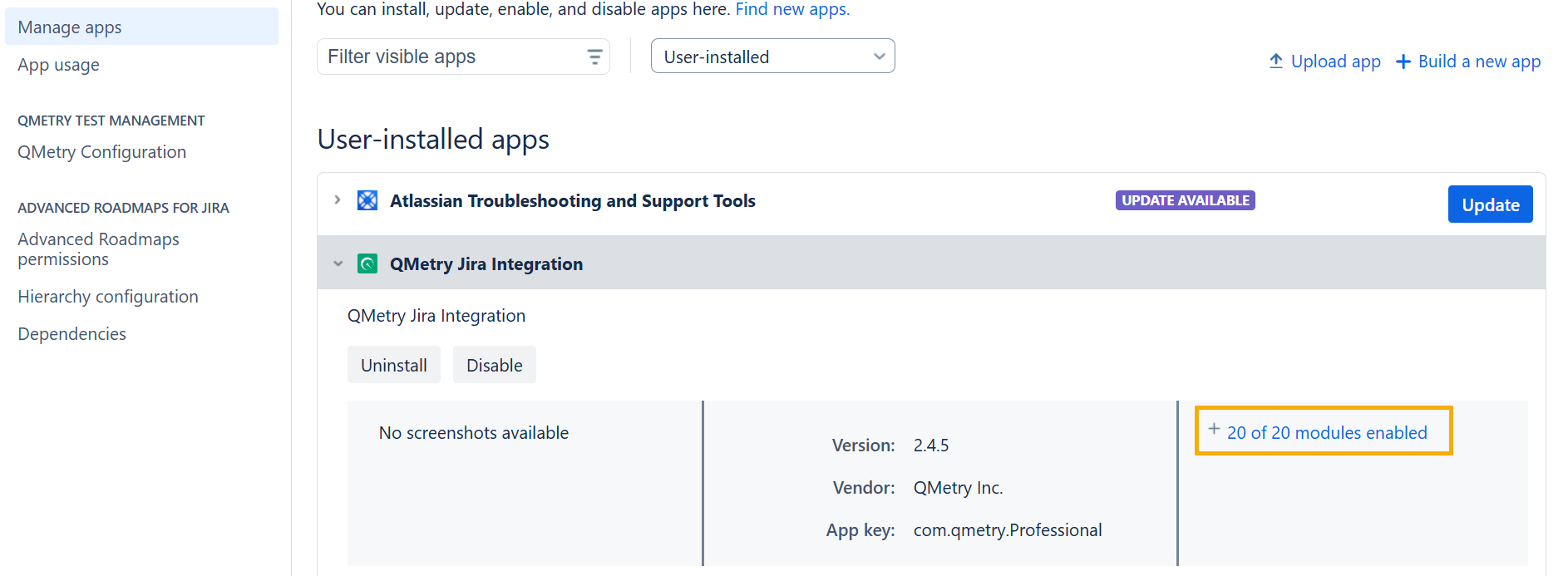 |
In JIRA, go to Apps and select Manage apps.
Expand the modules of QMetry Integration for JIRA, and enable all modules.
JIRA is now integrated with QMetry Test Management. You can sync requirements, bugs, and test results between QMetry and JIRA, and the Execution Summary gadget appears in JIRA.